The Best FPV Drone Simulators: Complete Round-Up - Oscar Liang
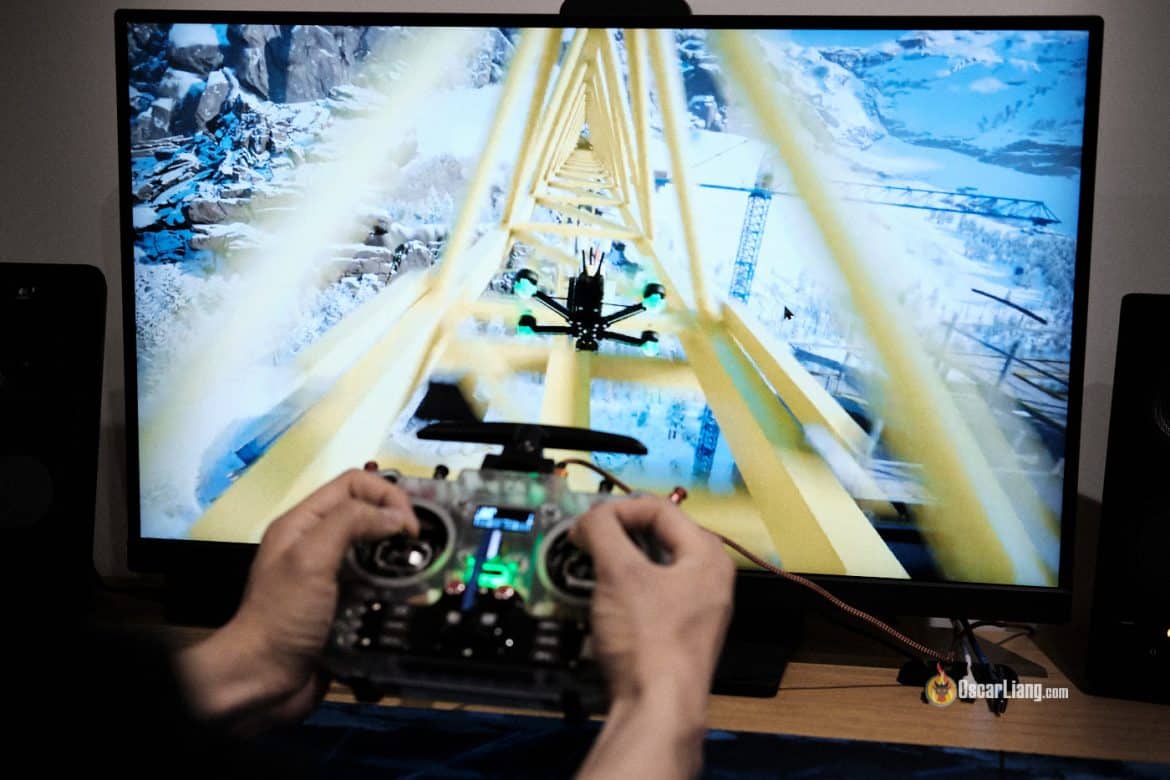
One of the most challenging aspects of getting into FPV drones is learning how to fly. FPV drone simulators allow you to practice and develop your skills without risking damage to your drone, even when the weather isn’t cooperating. In this article, we’ll explore all the available FPV drone simulators and help you choose the best sim for your needs.
If you’re new to FPV, check out our comprehensive guide to FPV drones to get started: https://oscarliang.com/fpv-drone-guide/
Table of Contents
What is an FPV Drone Simulator?
Imagine being able to fly an FPV drone in a vividly realistic virtual world—that’s exactly what FPV drone simulators offer. These simulators aren’t just games; they’re sophisticated training tools designed to closely mimic the experience of flying a real FPV drone. While no simulator can perfectly replicate the thrill of real-world flying, they come incredibly close, allowing pilots to sharpen their skills and master freestyle tricks in a safe, crash-proof environment—regardless of the weather—24/7.
Only in simulators can you fearlessly attempt daring tricks that feel nearly impossible in the real world! :D
A List of FPV Simulators
For Computers:
| Description | Platforms | Price (USD) | Link | ||
|---|---|---|---|---|---|
 | Liftoff ® | Popular, realistic physics, advanced level editor and customization options, best for freestyle and racing | Windows, macOS, Linux | From $19.99 | Steam |
 | VelociDrone | Excellent realistic physics, racing and freestyle focused | Windows, macOS, Linux | From $19.99 | VelociDrone |
 | TRYP FPV | Immersive visuals and various environments, great for freestyle and cinematic | Windows, macOS | From $14.99 | Steam |
 | Uncrashed | Realistic and various environments, physics optimized for freestyle and cinematic | Windows, macOS | From $14.99 | Steam |
 | FPV SkyDive | Good physics and graphics, focused on freestyle and racing | Windows, macOS, Linux | Free | Steam |
 | The Drone Racing League Simulator (DRL) | The official sim for Drone Racing League (DRL), racing oriented | Windows, macOS | From $9.99 | Steam |
 | DCL - The Game | The official sim for Drone Champions League (DCL), racing oriented, but you can only fly the DCL drone | Windows, macOS | From $29.99 | Steam |
 | FPV Freerider | Simple, basic sim for freestyle and racing | Windows, macOS | From $4.99 | Steam |
 | FPV Freerider Recharged | Improved version of FPV Freerider, more content | Windows, macOS | From $9.99 | Steam |
 | EreaDrone: FPV Drone Simulator | Beginner-friendly physics, focused on freestyle and exploration | Windows | From $24.99 | Steam |
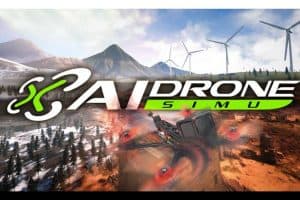 | AI Drone Simulator | Using AI trained model for realistic flights | Windows, macOS | From $14.99 | Steam |
 | CurryKitten FPV Simulator | An Affordable but Dated Option, made by an FPV Youtuber | Windows, macOS, Linux | $1.99 | Steam |
 | FPV Logic | New, basic sim, excellent freestyle maps | Windows, macOS | From $19.99 | Steam |
 | FlowState | Cinematic-focused sim, realistic environments for smooth filming | Windows | Free | Steam |
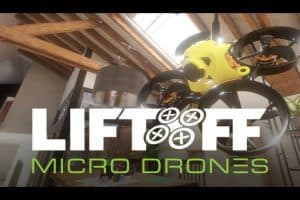 | Liftoff®: Micro Drones | Liftoff spin-off specialized for Tiny Whoops and micro drones | Windows, macOS, Linux | From $5.99 | Steam |
 | Tiny Whoop GO | Tiny Whoop-focused sim, great indoor environments and races | Windows, macOS | About $15 | Tiny Whoop GO |
What’s Steam?
Steam is a digital platform where you can buy, play, and update games. It simplifies game management and ensures your software stays updated with the latest patches. Additionally, Steam offers a user-friendly return policy, allowing refunds for games played for less than two hours—ideal for testing a simulator to see if it meets your expectations or runs smoothly on your computer. Most FPV drone simulators are available on Steam.
For Smartphones:
| Simulators | Description | Price | Link | |
|---|---|---|---|---|
 | FPV Skydive | Freestyle and racing, good physics and graphics | Free | Google Play |
| FPV Freerider | Simple, beginner-friendly, freestyle | $2.99 | Google Play |
| FPV Freerider Recharged | Enhanced version of FPV Freerider | $6.99 | Google Play |
 | FeelFPV Drone FPV Simulator | Simple controls, freestyle and basic flying | Free - In App Purchase | Google Play |
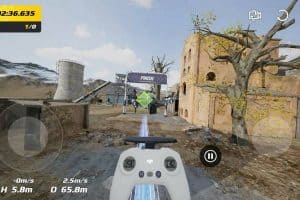 | DJI - Take off | Official DJI simulator, good for DJI camera drone training | Free | Google Play |
| VelociDrone Mobile | The popular racing sim on Android / iOS | $7.99 | Google Play Apple App Store |
What You Need to Fly FPV Simulators
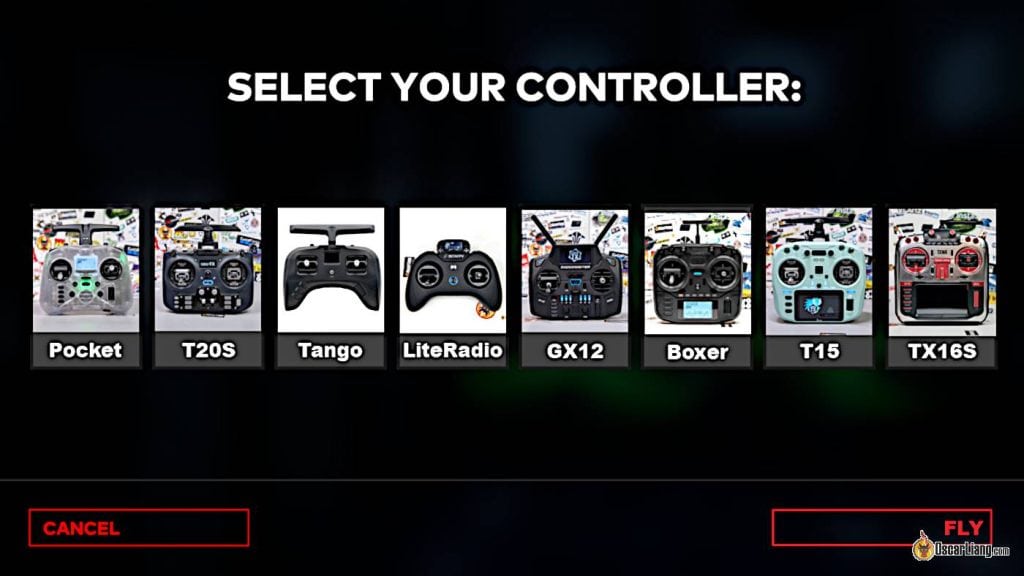
Before choosing an FPV simulator, you’ll first need a proper radio controller.
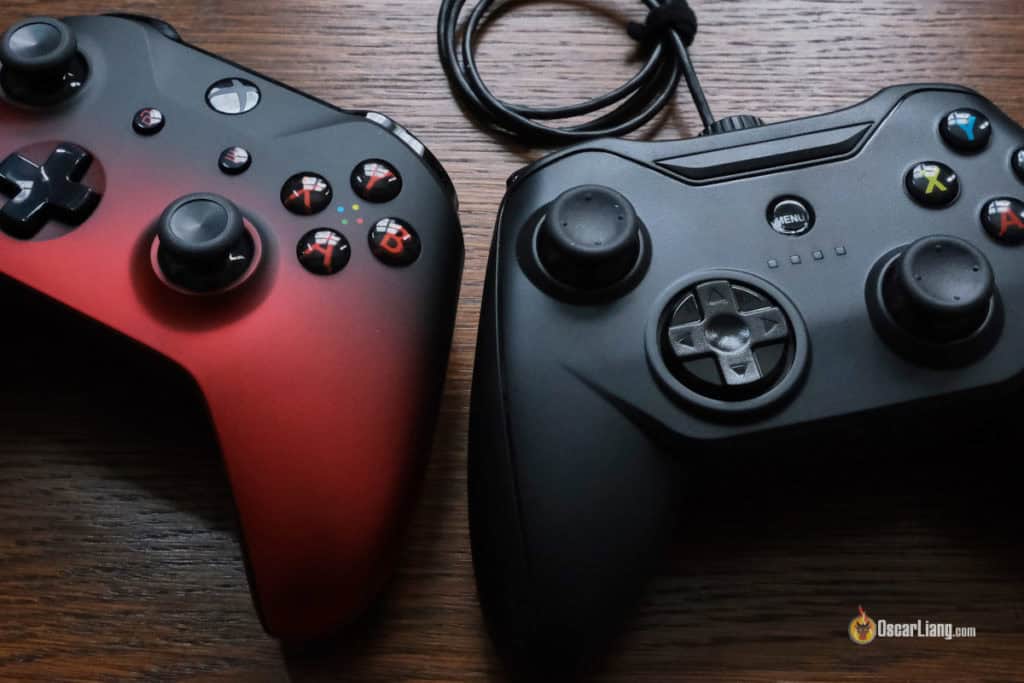
Pro Tip: I don’t recommend using gaming consoles (such as PlayStation or Xbox) or a keyboard, as skills gained from these methods rarely translate effectively to flying a real FPV drone using an actual radio controller.
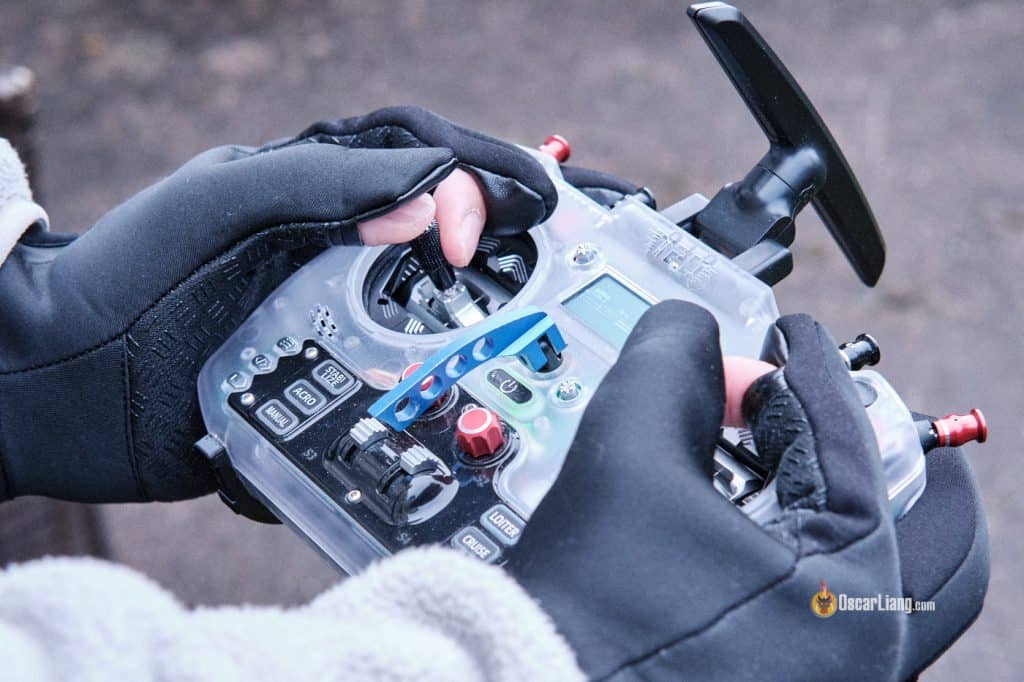
Using a proper radio controller helps build muscle memory and maximizes the benefits of your simulator training. Plus, you’ll continue using the same radio when flying actual drones, making it a valuable long-term investment.
Looking for radio recommendations? I’ve got you covered: https://oscarliang.com/radio-transmitter/#Radio-Recommendations
All radios recommended in my guide are plug-and-play compatible with the simulators discussed on this page—just connect via USB, and your radio will appear as a gaming joystick on your computer. It’s that simple.
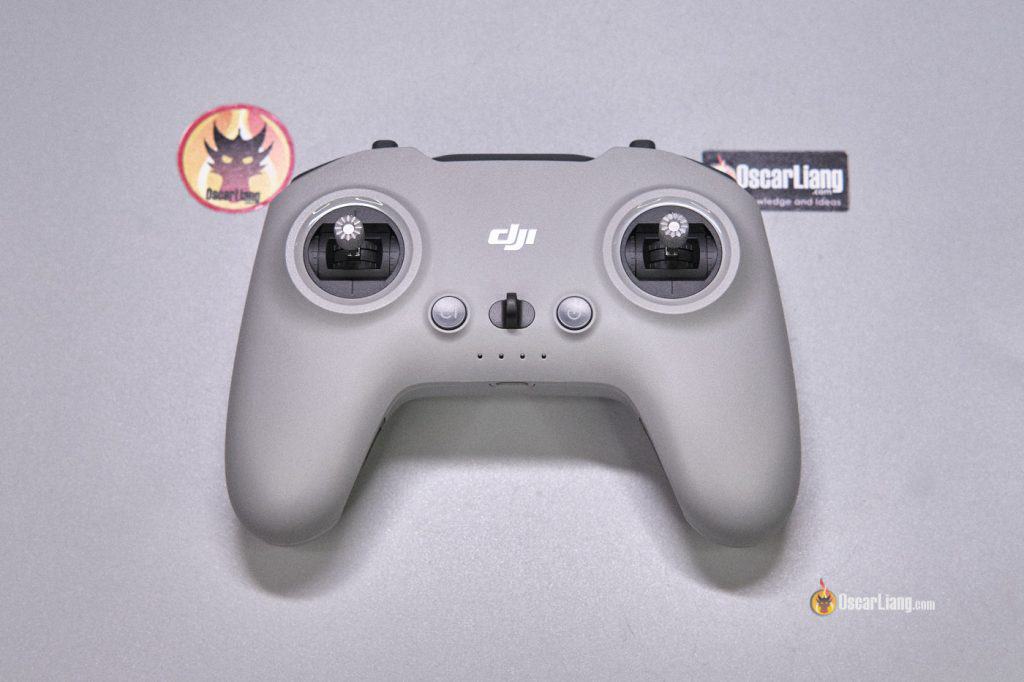
If you have a DJI Remote Controller (such as RC2 or RC3), it’s also totally fine for simulators – just connect it using a USB cable.
VelociDrone
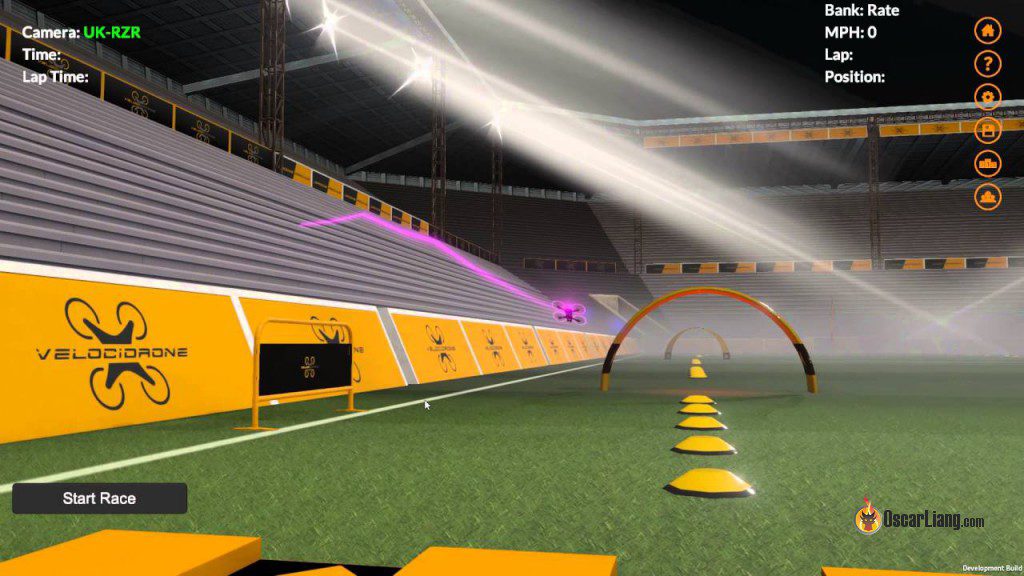
For those seeking the most authentic FPV drone flying experience, VelociDrone stands out. Released in 2016, it’s one of the oldest and most established simulators available. Although its graphics are relatively simple and somewhat cartoonish, this means it doesn’t require a high-end gaming PC to run smoothly.
Priced at $19.99, VelociDrone excels as a racing-focused simulator and boasts a strong racing community. It supports map editing, offers hundreds of user-created racing tracks, and features a fantastic “Nemesis” mode, which pits you against other players’ best lap times. If your goal is to improve your racing skills with highly realistic physics, VelociDrone is an unparalleled choice.
While VelociDrone is also suitable for freestyle practice, it doesn’t quite match the entertainment value offered by freestyle-focused simulators that feature better graphics and more varied environments.
Drone selection and customization in VelociDrone are somewhat limited, and additional drone models require purchasing DLC packs (such as the Freestyle and Micro Drone DLCs).
Note that VelociDrone isn’t available on Steam – you have to buy it directly from their website. For non-gamers, this can be a benefit, as you won’t need to deal with the gaming platform. However, for regular Steam users, it might feel inconvenient, as managing updates for the simulator can require additional effort.
Liftoff
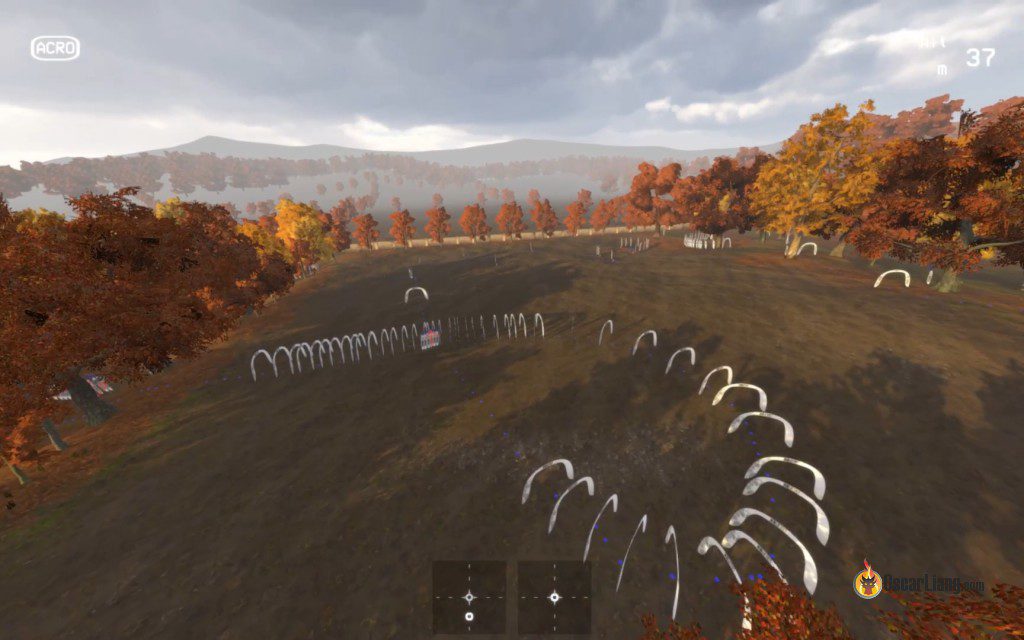
Released in 2018, Liftoff remains one of the best all-around FPV simulators, offering rich content and a large online community. Its updated training program provides an excellent structured learning path for complete beginners.
Priced at $19.99, Liftoff strikes a balance between ease of use and a comprehensive feature set. With a user-friendly interface, realistic physics, and diverse gameplay options, it appeals to a wide audience, from beginners to experienced pilots.
While its graphics and environments might fall slightly short and the menus feel dated compared to some newer simulators, Liftoff remains an exceptionally mature FPV sim, boasting an impressive amount of content. No other simulator matches its extensive collection of hundreds of drone models and thousands of tracks created by both developers and the community.
Liftoff was also the first simulator to introduce a “parts system”, allowing you to customize your drone by swapping components just like in real life. Additionally, it’s one of the few simulators that simulate propeller damage (this feature can also be disabled), promoting precise flying and increased awareness of obstacles for a realistic flying experience.
Here are some of my flying in Liftoff many years ago.
The Drone Racing League Simulator (DRL)
Warning (17 Jan 2026): DO NOT purchase this sim for now! When starting the game, it says “Server connection failed” and you cannot play this sim at all (offline playing doesn’t seem to work). Let’s hope this is only temporally, I will keep checking and come back and update.
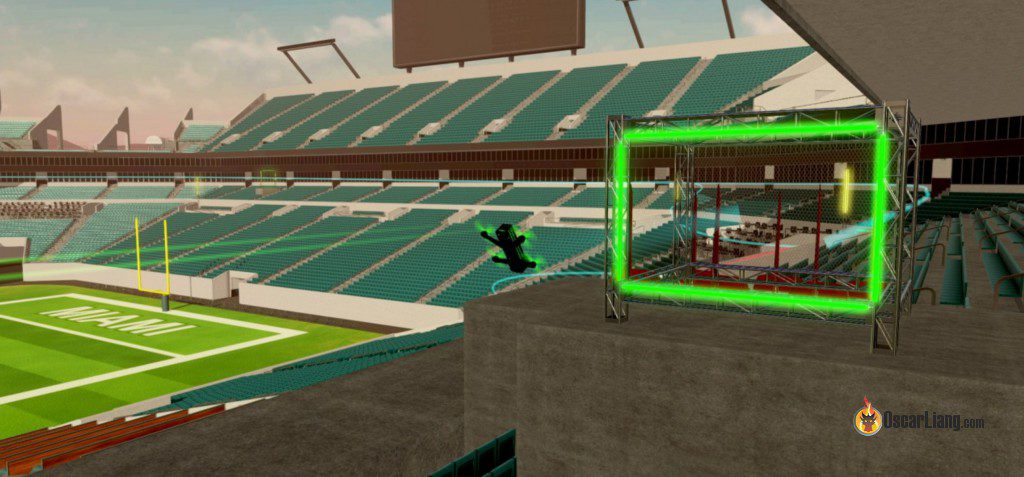
Released in 2017, the Drone Racing League Simulator (DRL) provides an exceptional starting point for anyone new to FPV flying, thanks to its comprehensive training program and engaging gameplay.
Priced at just $10, DRL offers impressive value, boasting over 20 diverse maps, extensive multiplayer options, and multiple game modes. It’s an excellent choice for both beginners and seasoned pilots.
The standout feature is its structured training program, which carefully guides you from basic flying techniques to advanced maneuvers, making it ideal for beginners.
As a gamer, I find DRL to be one of the most entertaining simulators. The maps are creatively designed and offer exceptional variety; for example, one map seamlessly combines skyscrapers, abandoned factories, and a shipyard, all within a single environment. Here’s a video of me having fun diving highrises and navigating its race track:
However, compared to newer sims, it feels dated in both graphics and physics. It’s still playable, but I’d only recommend it if you’re specifically into DRL-style racing.
TRYP FPV
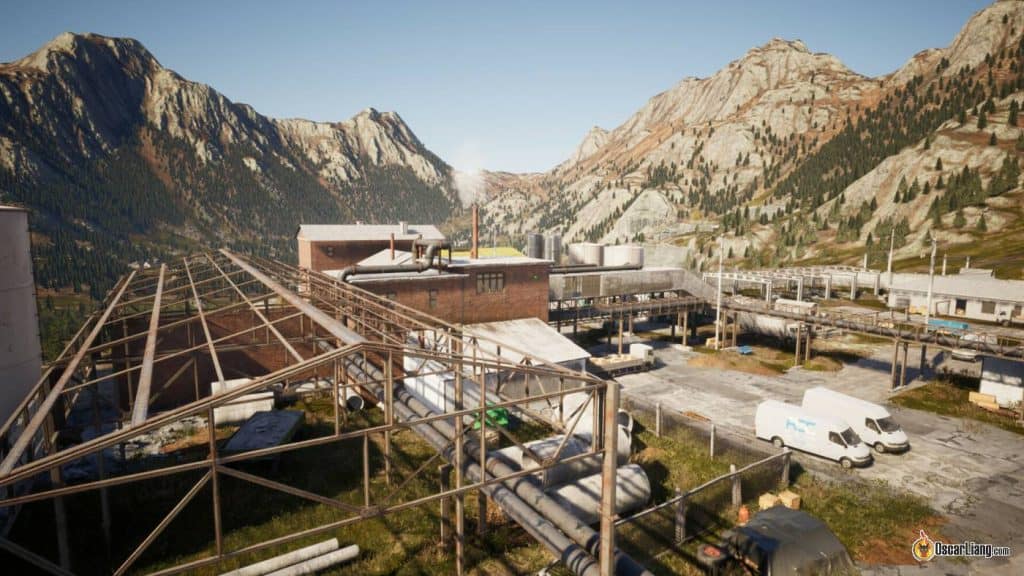
Released in 2022, TRYP FPV is arguably one of the best freestyle simulators available, known especially for its incredible graphics.
As a relatively new FPV simulator, TRYP FPV impresses users with its stunning visuals, expansive maps, and meticulous attention to detail. Priced at $14.99 on Steam, it offers a comprehensive simulator experience. However, despite its advanced graphics, some users have reported poor optimization, leading to low frame rates or frame drops. Its demanding performance requirements could limit accessibility for users without powerful gaming PCs.
Unfortunately, the training program falls short, potentially making the learning curve challenging for beginners. Nevertheless, for experienced pilots, the simulator’s vast and diverse environments are a delight. It features moving objects (such as race cars and skiers) you can follow with your drone, helping to enhance your freestyle and cinematic flying skills. While the simulated quads feel slightly heavier than in real life, the physics remains reasonably accurate, and drone parameters are adjustable to closely replicate real-world flight characteristics.
Overall, TRYP FPV stands out as one of my favorite simulators due to its stunning graphics and rich freestyle/cinematic features. It’s particularly appealing to people with high-performance gaming PC looking for expansive and immersive flying experiences. With high graphics settings enabled, the simulator can occasionally feel astonishingly close to flying in a real environment.
Uncrashed
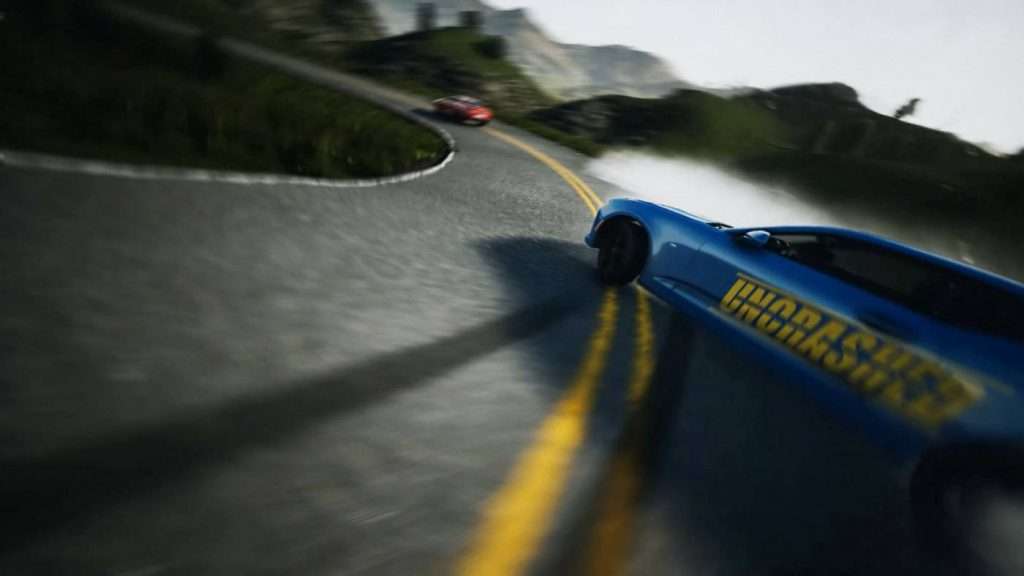
Released in 2021, Uncrashed is a dream come true for experienced freestyle pilots, thanks to its stunning graphics and expansive environments.
I’d place Uncrashed in the same category as TRYP FPV, as these newer simulators set a high standard for visual quality and exciting environments. Although the physics feel average—not quite as realistic as some other simulators—they’re certainly good enough to help you master flying FPV. Drone and environment settings can be customized, but this might be overwhelming for beginners.
With over 19 unique maps featuring engaging activities like chasing cars, Uncrashed is ideal for freestyle pilots seeking variety. The simulator offers regularly updated content, Steam Workshop integration, and an excellent multiplayer experience. However, the lack of a structured beginner training program is a notable shortcoming, preventing it from becoming the definitive FPV simulator.
In my opinion, Uncrashed excels as a visually immersive and enjoyable freestyle simulator. The expansive playgrounds provide endless entertainment, and flying through futuristic environments reminiscent of the flying-car scenes from “The Fifth Element” never gets old.
Choosing between Uncrashed and TRYP FPV can be challenging. However, recent updates to Uncrashed—including the addition of multiplayer mode and a map editing tool—give it an edge over TRYP, which lacks these features.
FPV.SkyDive
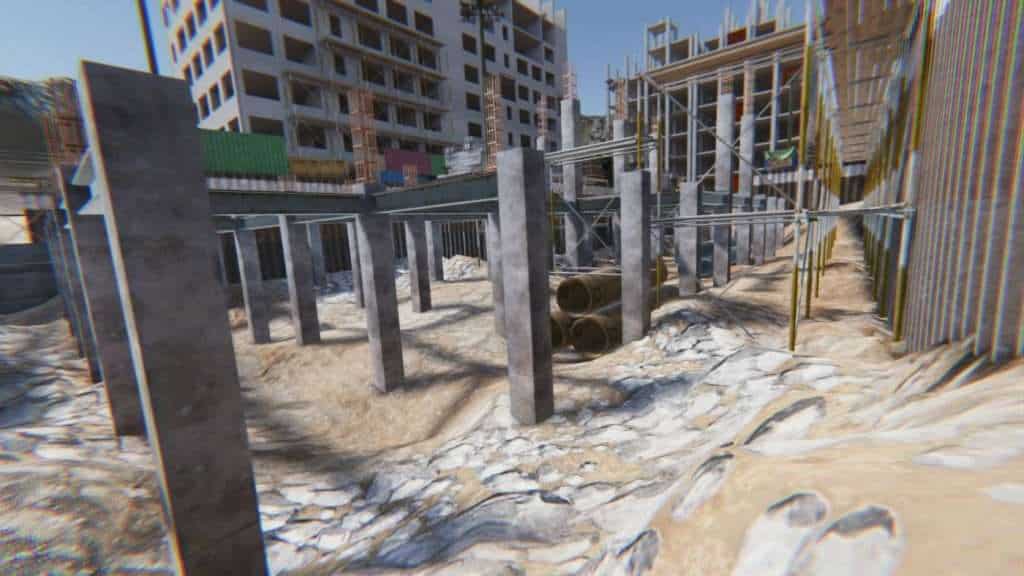
FPV Skydive initially looks promising when it was released in 2021, especially as a completely free simulator offering freestyle, racing, and multiplayer modes. However, its free offerings are quickly overshadowed by paywalls blocking additional tracks, maps, and training lessons. While it runs smoothly and enjoys active multiplayer rooms, the drone physics feel mediocre, detracting significantly from the overall realism. Suitable perhaps for beginners wanting a basic entry point, but not recommended if you’re looking to progress seriously. If you are willing to spend money, other paid options are more complete packages and more worth it in my opinion. With that said you can still download this sim and enjoy the free content and get a taste of FPV without spending any money.
Update (Mar 2022): Orqa released an Android/iOS version of this sim!
FPV Logic
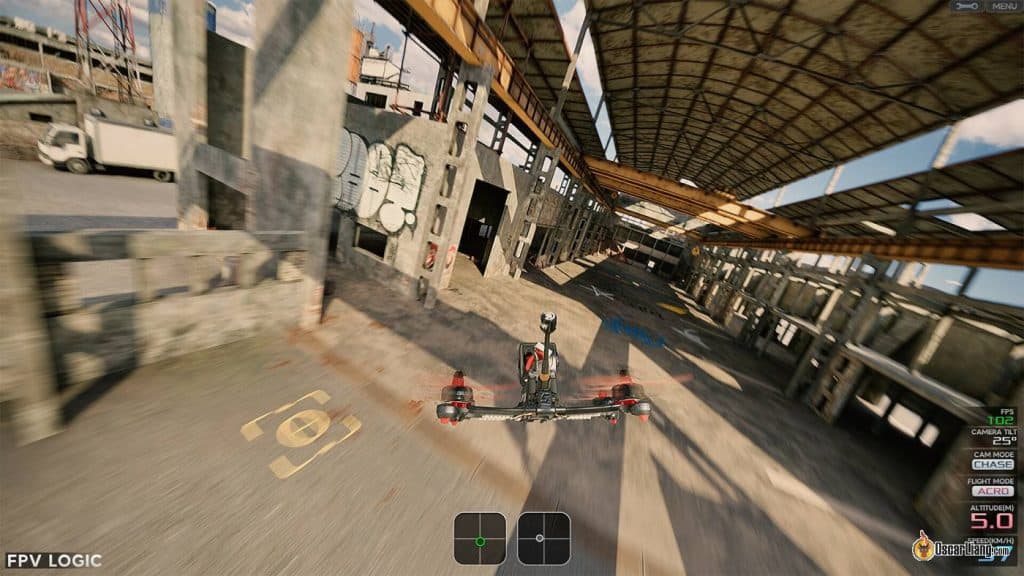
FPV Logic is a relatively new FPV simulator known for its realistic physics similar to VelociDrone, but lean more towards freestyle flying. Although somewhat barebones, it features excellent freestyle maps perfect for flowing through creative gaps and lines. It includes a basic race mode with AI opponents but lacks advanced features like VelociDrone’s custom tracks or nemesis mode. Some pilots find maintaining momentum challenging, making the physics occasionally feel unusual. Although actively updated, it feels limited compared to TRYP, DRL, or Uncrashed, offering less overall value.
Tiny Whoop Simulators
Liftoff: Micro Drones
When discussing Tiny Whoop simulators, you must check out Liftoff: Micro Drones. This independent, purpose-built simulator is designed specifically for the Tiny Whoop class by the same people who made Liftoff.
The physics are quite good, though if I’m being picky, the whoops seem to carry slightly more momentum than in real life—as if they’re heavier. This makes them harder to control and more challenging to maneuver accurately through turns. The drone tends to “slide”, requiring additional stick adjustments and reduced speed to navigate race gates smoothly.
In comparison, Tiny Whoop GO feels more forgiving, making it easier for beginners to handle. However, this forgiving nature might diminish the experience for more advanced racers. If you’re seeking a more challenging simulator to improve your whoop piloting skills, Liftoff: Micro Drones might be the better choice.
The attention to detail and creativity in this sim are impressive. For instance, in the warehouse map, you’ll hear ambient sounds like forklifts operating and people working, creating a truly immersive flying experience. The “Prom Night” map is packed with interactive elements—you can pop balloons, dispense soda from vending machines, and even play music from the DJ’s laptop!
Tiny Whoop GO
If you’re looking for a free Tiny Whoop simulator, Tiny Whoop GO used to be a fantastic option. It felt reasonably realistic, though slightly easier to fly than in real life, which might disappoint pilots looking for more of a challenge.
Update 2025: Unfortunately, Tiny Whoop GO is no longer free, and its current price is nearly three times higher than Liftoff: Micro Drones, making it hard to recommend.
Other FPV Simulators
AI Drone Simulator
At $15, AI Drone Simulator promises a modern FPV simulator experience but falls short in delivering a standout feature set. While it offers high-detail maps and the option for community-made drone downloads, its lack of features and game modes compared to other popular sims place it in a challenging position. For those prioritizing community content and drone customization, AI Drone Simulator offers some appeal, but overall, it struggles to justify its place in a competitive market.
FlowState
Flowstate is available on Steam, and it’s free. It’s tailored more towards racing, and lacking a lot of features on other paid sims.
FPV FreeRider (Original and Recharged)
FPV Freerider ($6) and its upgraded version, FPV Freerider Recharged ($10), were kind of outdated. Despite having good drone physics and a decent racetrack generator/editor, the small maps, lack of customization, and poor graphics undermine their value. FPV Freerider Recharged offers improved graphics but strips away valuable features like the automatic track generator, failing to justify its higher price tag.
CurryKitten FPV Simulator
At just $2, CurryKitten FPV Simulator, created by an FPV YouTuber, deserves respect for its solo-developed roots. Unfortunately, it’s marred by outdated graphics, limited maps, lack of drone customization options, and average physics. The interface is challenging to navigate, and with no updates since 2022, it sadly doesn’t hold up today in the competitive market.
DCL – The Game
At $30, Drone Champions League (DCL) Simulator emphasizes gamification, including earning rewards and customizing drones. They has authentic racing tracks from the Drone Champion League. If racing is your main interest, it’s a fun sim. Unfortunately, unrealistic physics and lack of variety limit its value strictly to casual gaming rather than serious simulation or training.
Connecting Radio To FPV Simulator
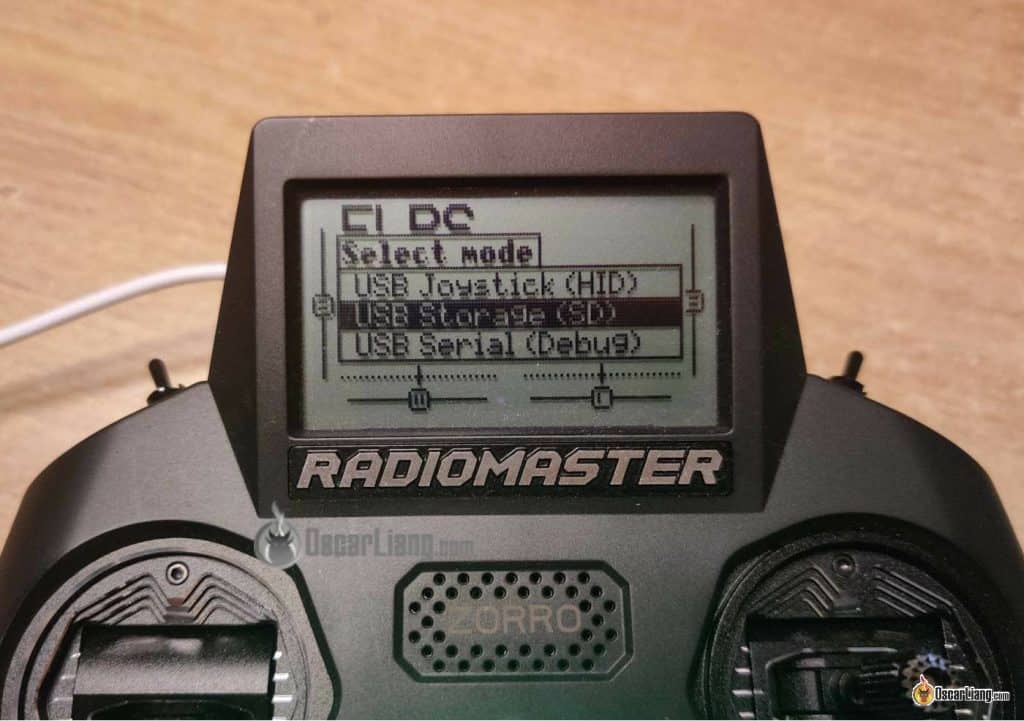
Connecting your FPV radio/controller to a simulator is straightforward, this is how to do it with any EdgeTX radios:
-
Power on your radio controller.
-
Connect it to your computer using a USB-C cable (some radios has one USB port for both data and charging, but some has two ports, one for charging and the other for data; make sure to connect to the data USB port):
-
Select the USB Joystick option on your radio once connected.
-
Launch your FPV simulator
-
Navigate to the simulator’s Options → Controller settings.
-
Calibrate your radio/controller: Follow the on-screen prompts to assign throttle, yaw, pitch, and roll inputs.
-
Confirm each input is correctly assigned by moving the sticks as instructed.
-
Finish calibration and return to the main menu.
-
You’re now ready to fly!
Other Ways to Connect Your Radio to the Simulator
While using a USB cable is the most straightforward method, there are alternative ways to connect your radio controller to the simulator. You can use ExpressLRS Bluetooth or even a receiver dongle (such as via a flight controller or using products like the Squid Stick). These wireless methods offer convenience, but keep in mind they may introduce additional latency due to extra processing, which can make simulators feel slightly less realistic.
Another benefit of using a USB cable is that your radio’s battery will rarely run out while you’re using the simulator, since the USB connection simultaneously charges the battery.
Computer Requirement
How well FPV simulators run largely depends on your computer’s GPU, CPU, and the selected video resolution and graphics settings. If you have an older or slower computer, some simulators may not perform optimally. Lowering your graphics settings can often help older computers handle simulators more smoothly.
When your computer struggles to render the simulator, you might experience stuttering, frame drops, and increased latency, making the flying experience feel unrealistic. When Liftoff first came out, I initially complained it felt floaty and unresponsive. It turned out my PC was simply too slow. After lowering all graphics settings to the minimum, these issues were greatly improved. Later, when I upgraded to a faster gaming PC, I could run Liftoff smoothly even at high graphics settings.
If you’re unsure how well your simulator is running, monitor the frame rate. Aim for frame rates equal to or greater than your monitor’s refresh rate. If your frame rate falls below this, consider lowering your graphics settings.
My gaming PC handles all these simulators pretty well even at high image quality settings. However, I prefer using low-to-mid settings to achieve higher FPS, making the simulation feel closer to real life. Here are my PC specifications (Amazon affiliate links):
-
AMD Ryzen 7 5800X CPU: https://amzn.to/3setMFb
-
NVidia GeForce RTX 3070 Ti (16GB VRAM): https://amzn.to/3MPy79Q
-
Corsair Vengeance 16GB RAM x2 (32GB): https://amzn.to/38OotFC
-
Samsung 980 PRO 1 TB SSD: https://amzn.to/3w7Tmwy
-
MSI MAG B550M MORTAR Motherboard: https://amzn.to/3Fiu572
-
Corsair RM750 Power Supply: https://amzn.to/3KG1vO9
I also use my MacBook Pro for FPV simulators when traveling. It’s been fantastic for editing FPV videos and practicing in sims while I’m away—I can’t recommend it highly enough. I explain why I prefer the M1 Pro over the M2 in this article: https://oscarliang.com/macbook-air-m2-pro-m1/. Occasionally, you can find discounts of up to 10% on Amazon. I saved nearly $200 on my 14″ Pro M1. Check prices on Amazon (affiliate link): https://amzn.to/3CgxOTr
Best FPV Sim for MacOS
Despite my initial fear that my non-gaming Macbook Pro (M1 14inch) would struggle, I was pleasantly surprised to find that I didn’t face any issues with the simulators I tested. It’s also compatible with common radios such as Radiomaster and Jumper.
Most sims should run smoothly on the latest Macs. However, for those who want to play safe, Velocidrone is an excellent choice. It has one of the lowest CPU and GPU requirements. Despite a lack of high-end graphics, it doesn’t skimp on features, ensuring a comprehensive training experience.
For those looking to explore other simulators on Steam, feel free to give them a go. Steam’s refund policy is there if they don’t perform well on your machine.
Does Physics Matter?
Yes and no.
The physics of a drone simulator are highly subjective. While simulators continue to improve and closely mimic real-life flying, they may never feel exactly the same as flying an actual drone.
Ultimately, the purpose of a simulator is to help you learn the fundamentals of flying and build muscle memory. Choose a simulator that feels realistic enough for you, has graphics you enjoy, and runs smoothly on your computer.
Focus your time on consistent practice rather than worrying too much about simulator physics.
What to Practice in Simulators
Maintain proper posture and ergonomics while using simulators. If you typically stand while flying in real life, do the same during simulator practice. Similarly, if you normally use a neck strap, use one during your simulation sessions.
If you’re a complete beginner, select an open map with minimal obstacles to start.
For beginners, here’s what I would recommend to practice:
-
Arming and Disarming: Practice arming and disarming your drone regularly. When you crash, practice disarming the drone before hitting the reset button—this is a critical habit to form.
-
Basic Flight Movements: Practice taking off, flying in a straight line, making left and right turns, and flying in circles.
-
Landing: Practice controlled landing by hovering close to the ground before disarming, minimizing impact. Don’t underestimate this simple exercise, you would be surprised how many people can perform complex acrobatic moves but struggle to land without crashing :)
-
Precision Maneuvering: Practice flying through gaps to develop precision and control.
-
Freestyle Maneuvers: Practice precise rolls, flips, and split-S maneuvers – these are the fundamental of freestyle moves.
Simulator Tuning and Settings
After years of flying FPV simulators, I can confidently say that the default settings in most FPV sims typically aren’t optimal. Adjusting the settings can usually make your virtual drone feel closer to a real one.
In addition to settings commonly found on real quads—such as PIDs and rates—you can also fine-tune the simulator’s physics. Your goal is to match the quad performance in simulator to your real-world quad as closely as possible. If you’re just starting out, you might not yet have a clear idea of how a real drone should handle. In this case, sticking to the default settings or copying someone else’s proven settings is advisable. One important setting to customize early is your rates, which control the sensitivity of your quadcopter. Check out this guide to learn more about rates: https://oscarliang.com/rates/
I typically set my graphics to the lowest possible settings and disable any unnecessary visual effects. This ensures the highest possible frame rate, minimizing latency and maximizing smoothness for the most realistic flying experience.
Should I Wear FPV Goggles for Simulators?
It’s kind of unnecessary, but you can try if you want.
FPV Goggles with HDMI input, such as Skyzone SKY04X Pro, Walksnail Goggles X or HDZero Goggles, can connect to your computer and serve as an external monitor, allowing you to practice FPV flying with goggles. This might help beginners become accustomed to flying with goggles from the start.
However, I personally find using a standard monitor easier on the eyes, especially during long practice sessions. Additionally, gaming monitors typically offer superior frame rates and image quality compared to FPV goggles, providing a more comfortable and realistic experience overall.
Line of Sight Flying Simulators
Many FPV pilots can fly well using goggles but struggle with line-of-sight (LOS) flying. While practicing LOS in a simulator might help somewhat, it’s typically not the most effective approach.
Firstly, simulators lack the depth perception you’d normally experience in real life, making it difficult to accurately judge your drone’s distance on screen. Additionally, orientation can be challenging to discern clearly in simulators due to lower screen resolutions.
If you’re interested in practicing LOS in simulators anyway, here are a few options:
-
Liftoff: Press B to switch to LOS mode.
-
VelociDrone: Scroll the mouse wheel to zoom into LOS mode.
-
FPV Freerider: Offers a dedicated LOS mode.
Dedicated Radio Profile for Simulators
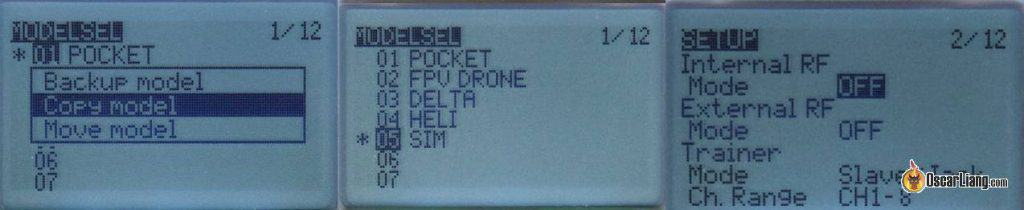
When using simulators, set up a dedicated radio profile on your transmitter. Simply duplicate your existing profile for FPV drone, and disable both internal and external RF modules in the Model setup. This helps conserve your transmitter’s battery during simulator sessions.
Issues Connecting Radio to macOS?
If you’ve connected your radio controller to a Mac and nothing happens—no prompt on the radio to select joystick mode and no detection by the computer—it might be a cable issue. I encountered this problem when using a USB-C to USB-C cable. The same cable worked fine on a Windows computer but did not work with my MacBook.
The solution is to use a USB Type-A to USB-C cable. If your Mac doesn’t have a USB Type-A port, simply use a USB-C male to USB-A female adapter. I’ve tested this and it works perfectly.
You can find a suitable adapter here: https://amzn.to/470TcYI
Can I Use an Android Phone or iPhone for Simulators?
If you’re looking to practice FPV flying on a smartphone, using an Android device is generally more straightforward. You can connect your radio directly to an Android phone using an OTG USB cable.
However, connecting via USB isn’t possible on an iPhone due to iOS restrictions. While you can control the drone using the touchscreen, this method doesn’t effectively translate to real-world flying skills. Alternatively, you can connect a radio to your iPhone wirelessly via WiFi, provided your radio has an ExpressLRS transmitter module. Simply enable WiFi on your ExpressLRS module, join that WiFi network from your iPhone, and configure the joystick within compatible simulators (such as the VelociDrone iOS version). Keep in mind, though, that WiFi connections may introduce higher latency compared to a direct USB connection on Android.
Is IRL Flying Harder Than Simulator Flying?
Some people can fly like a god in simulators but just can’t stop crashing in real life.
You may blame the physics — wind, latency, video glitches, and so on. These variables simply don’t exist in simulators, which makes flying way more predictable and easier than in real life.
But there are also psychological factors. When flying in real life, there are nerves and anxieties – maybe you are worried about damages when you crash, or someone is watching you fly. That’s something simulators can never really prepare you for, and it takes actual flight time to get used to it.
That’s why it’s so important to go out and fly if your goal is to fly a real drone, rather than just getting good at simulators.
Final Thoughts – My Recommendations
All the FPV simulators we’ve mentioned so far will effectively teach you how to fly, so if you’re undecided, just try a few of them and see which you enjoy the most.
Here are my top FPV simulator recommendations:
-
Best for freestyle and cinematic flying: Uncrashed or TRYP FPV
-
Best for racing and low-spec computers: VelociDrone
-
The jack of all trades: Liftoff
-
Best Tiny Whoop simulator: Liftoff: Micro Drone
-
Best free simulator: FPV SkyDive
-
Best smartphone simulator: VelociDrone Mobile
FPV drone simulators can’t fully replace real-world flying, but they are extremely beneficial for improving your flying skills without risking damage to your drone, or when outdoor flying isn’t possible. For beginners, simulators offer an invaluable opportunity to build muscle memory and learn new skills. As you advance, real-world practice becomes increasingly important. While some simulators emphasize graphics and visual realism, others prioritize accurate flight physics and broad hardware compatibility. Ultimately, choose a simulator that aligns best with your specific needs and preferences. Happy flying!
Edit History
-
2015 – Article created
-
2017 – Updated reviews
-
2018 – Updated reviews
-
2019 – Updated reviews, added “Wearing FPV Goggles in Sims”
-
2021 – Shortened URL, updated my recommendations
-
2022 – Updated list with new simulators
-
2023 – Updated list with new sims
-
2024 – Updated my reviews and recommendations
-
2025 – Updated recommendations and reviews